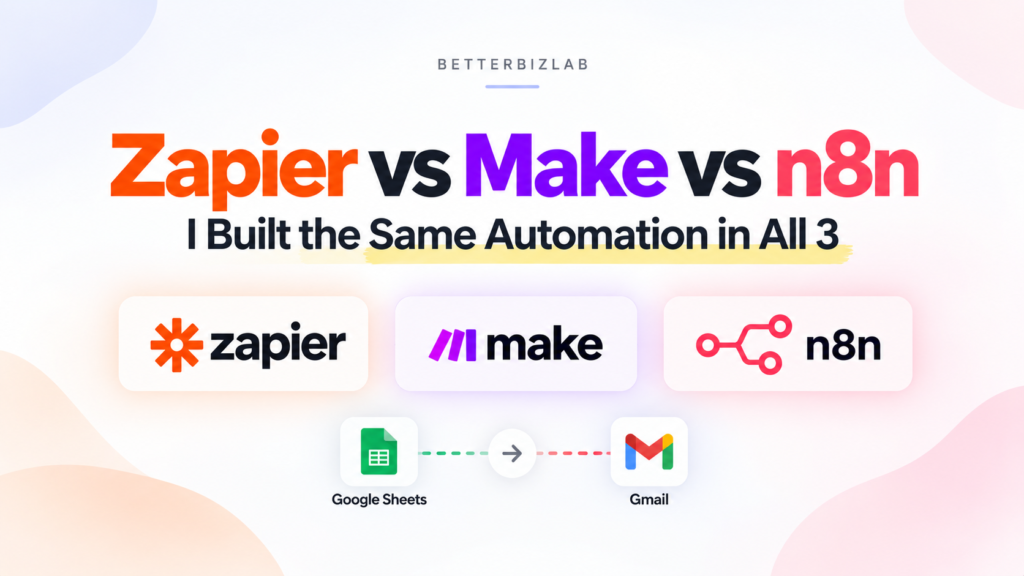
Zapier vs Make vs n8n is one of the first comparisons you’ll run into when looking for an automation platform for a small business.
Comparing their feature lists is easy. Actually building something with them is more useful.
So instead of putting together another comparison based mostly on pricing pages and product documentation, I opened all three platforms and built the same small-business automation in each one.
The workflow was intentionally simple.
A customer submits an inquiry. The inquiry appears as a new row in Google Sheets. The automation reads the customer’s name, email address, and message, then sends a personalized response through Gmail.
Nothing complicated. No 20-step AI agent. No custom code.
I wanted to test the kind of automation a small business could realistically build as a first project.
I used the same Google Sheet, essentially the same customer data, and the same email response in all three platforms. I also timed how long it took me to get each workflow working and checked my actual inbox rather than stopping when the automation builder showed a green checkmark.
All three eventually worked.
But the experience of getting there was not the same.
Table of Contents
The Short Version
Here is what happened in my test:
| Platform | Approx. workflow setup time | Actual email sent? | My main observation |
|---|---|---|---|
| Zapier | 15 minutes | Yes | The most straightforward traditional setup |
| Make | About 15 minutes | Yes | More visual control, but more manual setup |
| n8n | About 4–5 minutes* | Yes | AI did a surprising amount of the initial building |
*The n8n time refers to building and connecting the workflow after the workspace was ready. Creating the account and waiting for the new workspace to initialize took additional time.
That last detail matters.
I don’t think this test proves that n8n is always three times faster than Zapier or Make. It doesn’t. I tested one simple workflow, and I used n8n’s AI workflow builder during the test.
What it did show me is how different these products now feel when you actually sit down and try to automate something.
The Automation I Built
I created a Google Sheet with four fields:
Name | Email | Company | Inquiry
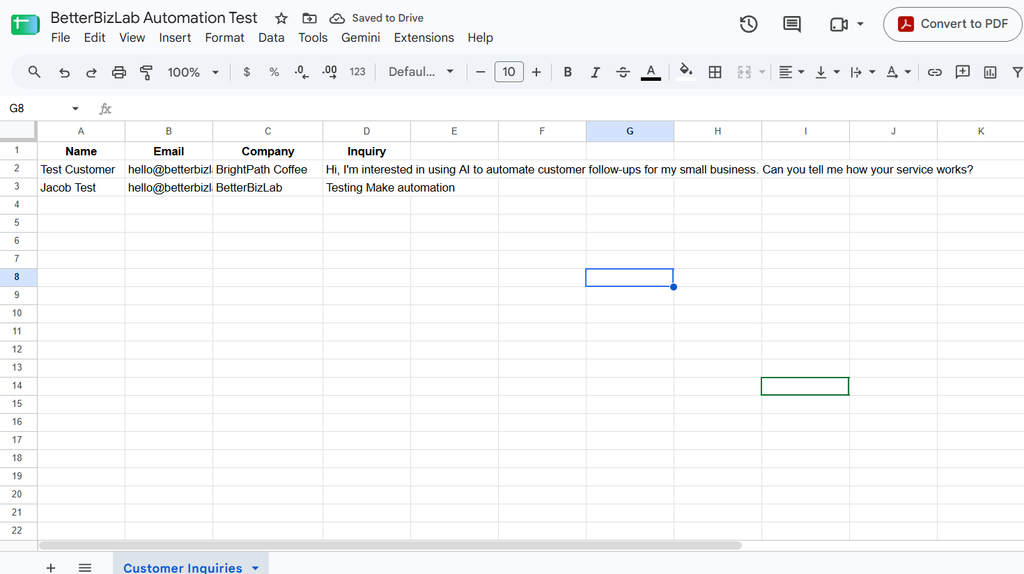
One of my test entries was a fictional customer called BrightPath Coffee.
The inquiry was:
Hi, I’m interested in using AI to automate customer follow-ups for my small business. Can you tell me how your service works?
The automation needed to detect the new row and send an email to the address listed in the Email column.
The response included the customer’s name and original inquiry dynamically:
Hi Test Customer,
Thanks for reaching out to BetterBizLab.
We received your inquiry:
“Hi, I’m interested in using AI to automate customer follow-ups for my small business. Can you tell me how your service works?”
We’ll review it and get back to you shortly.
Best,
BetterBizLabCustomer follow-up is only one example. I also put together seven small business tasks you can automate with AI if you’re looking for practical places to start.
The important part wasn’t the email copy.
I wanted to verify that each automation could take the values from the spreadsheet and put the right data into the right places in Gmail.
That meant mapping at least three fields:
- Name
- Inquiry
I also wanted to see what happened when someone without deep automation experience tried to configure each platform.
That turned out to be more interesting than the workflow itself.
Zapier: The Most Straightforward Setup
I started with Zapier.
The basic structure was immediately understandable:
Google Sheets → New Spreadsheet Row → Gmail → Send Email
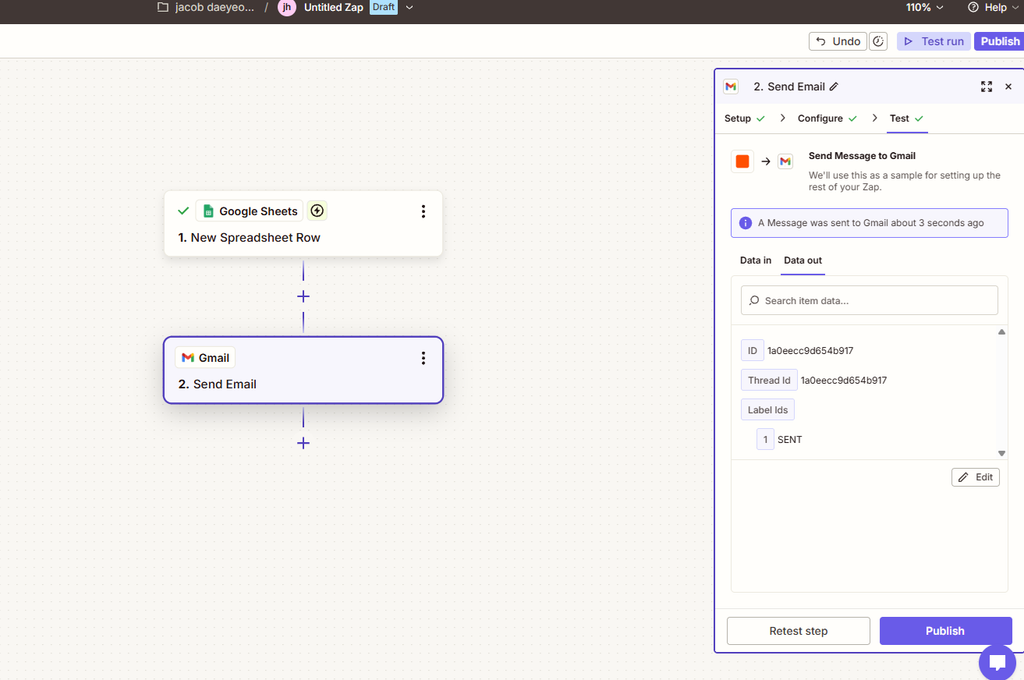
Zapier officially supports this exact type of Google Sheets-to-Gmail workflow, so there wasn’t much ambiguity about which trigger and action I needed.
I connected my Google account, selected the spreadsheet, chose the worksheet, tested the trigger, connected Gmail, and mapped the fields.
The workflow worked.
From the time I started building until Zapier successfully sent the test email, approximately 15 minutes had passed.
The only real mistake was mine
Interestingly, the biggest problem I ran into wasn’t a Zapier error.
When preparing my Google Sheet, I meant to rename the worksheet tab to “Customer Inquiries.”
Instead, I typed “Customer Inquiries” into the first cell.
That pushed my actual column headers down a row.
When I returned to Zapier, the worksheet setup didn’t look right. I eventually realized what I had done, deleted the extra text, moved the headers back where they belonged, and renamed the actual worksheet tab.
It’s a tiny mistake.
It’s also exactly the kind of mistake that doesn’t show up in most software comparison articles.
When you’re setting up an automation for the first time, the difficulty isn’t always caused by the software. Sometimes you simply don’t know what the interface expects yet.
Once the sheet was corrected, Zapier was easy to follow.
Mapping the customer information
For the Gmail action, I mapped the customer’s email address from the Google Sheet instead of typing an address manually.
I did the same thing with the Name and Inquiry fields.
That meant a new row could contain a completely different customer and the email would still be personalized automatically.
The final workflow successfully:
- detected the spreadsheet row,
- pulled the customer information,
- passed that information to Gmail, and
- sent the message.
Zapier displayed a successful Gmail result, and I then opened the actual inbox to confirm that the email had arrived.
It had.
What Zapier felt like to use
Of the three tools, Zapier felt the most like software designed around a question:
“What happens first, and what should happen next?”
For a simple automation, that is useful.
Trigger.
Action.
Map the information.
Test it.
There weren’t many moments where I wondered what I was supposed to do next.
That doesn’t necessarily mean Zapier will be easiest once a workflow becomes much more complicated. But for this two-step test, the structure was easy to understand.
Make: More Visual, but I Had to Think More About the Setup
Next I rebuilt the same automation in Make.
The basic logic was identical:
Google Sheets → Watch New Rows → Gmail → Send an Email
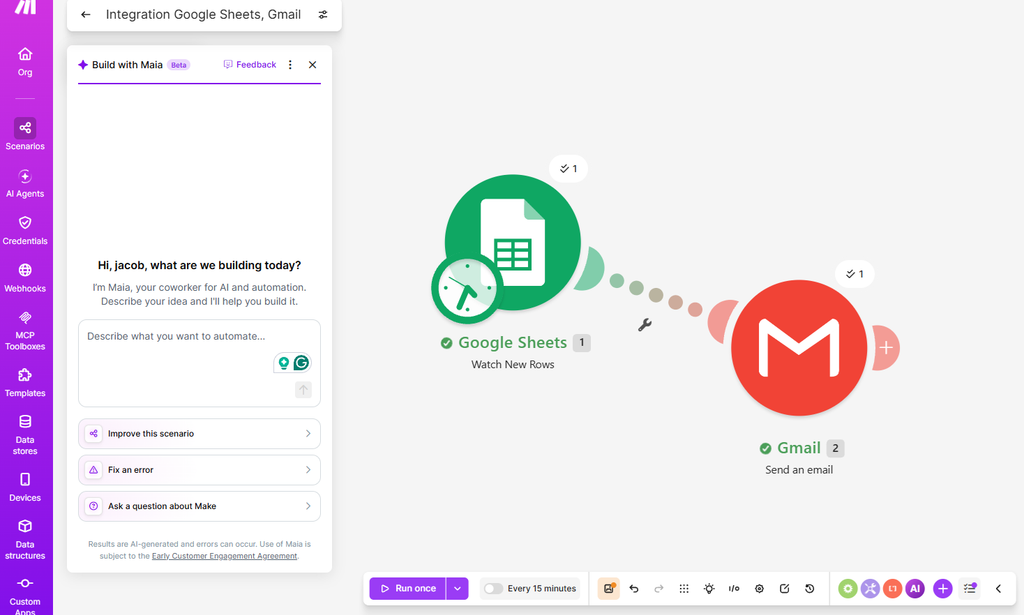
But the experience felt different almost immediately.
Instead of the more step-by-step feel I had in Zapier, Make gave me a visual scenario canvas. Google Sheets became one module and Gmail became another.
I can see why people like this approach.
Even with only two modules, it was easy to see the automation as a flow rather than a sequence of configuration pages.
Setting up the Google Sheets trigger
I selected Watch New Rows and connected the same Google account.
Then I selected the same BetterBizLab test spreadsheet.
Make asked for more detail about the spreadsheet structure, including the row containing the headers and where the automation should begin watching.
This wasn’t difficult, but it made me pay more attention to how the spreadsheet itself was structured.
I also had to decide where Make should begin processing rows so that it wouldn’t treat everything in the sheet as a new customer inquiry.
Again, this is not necessarily a negative.
In fact, having that control can become useful.
But it made the initial setup feel a little less guided than Zapier.
The first run worked — but it wasn’t really finished
After connecting Gmail, I configured the email and ran the scenario.
Make successfully read the Google Sheets data and sent an email.
But at first, I had typed some of the test information directly into the Gmail module.
Technically, the automation worked.
Practically, that wasn’t good enough.
If the email said “Hi Test Customer” because I had manually typed “Test Customer,” I hadn’t proven that the automation could personalize the next customer’s message.
So I went back.
I replaced the hard-coded customer name with the dynamic Name field from Google Sheets.
Then I replaced the hard-coded inquiry with the dynamic Inquiry field.
I also mapped the Email field so that the recipient could come directly from the new spreadsheet row.
That was the real test.
I added a second customer to make sure it worked
Instead of relying on the original sample row, I added another row to the spreadsheet:
Name: Jacob Test
Company: BetterBizLab
Inquiry: Testing Make automation
I ran Make again.
This time the scenario detected the new row, passed it to Gmail, and sent the email.
I opened the inbox.
The message said:
Hi Jacob Test,
and included:
“Testing Make automation”
That confirmed the fields were actually dynamic.
One small formatting problem
The email arrived, but the body appeared mostly as one long line.
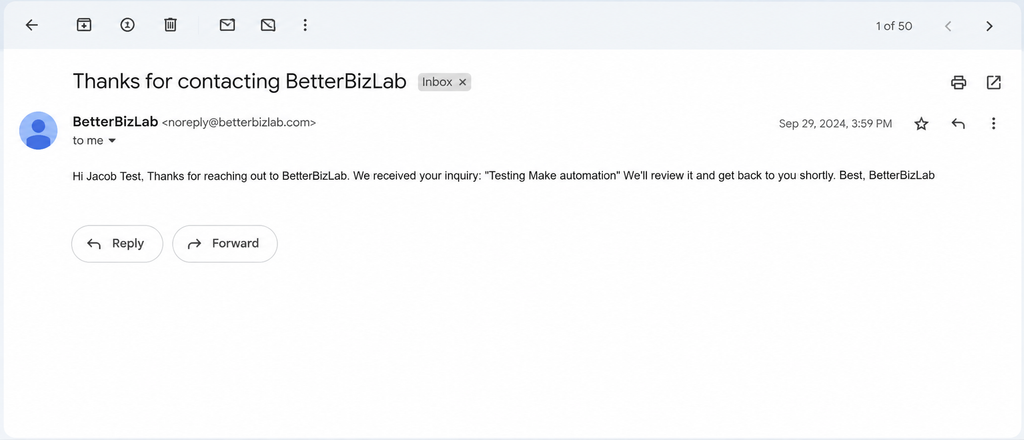
The automation itself wasn’t broken.
I had left the Gmail body configured as Raw HTML while entering the message more like plain text.
That is fixable with proper HTML formatting or a different body configuration, and I could have cleaned it up in another minute or two.
For this test, I didn’t need to.
The point was to verify the workflow and dynamic data mapping, and both worked.
I actually like that this happened during the test because it illustrates something important about automation software.
A successful execution does not always mean the output is ready for customers.
You still need to look at what the customer actually receives.
What Make felt like to use
Make gave me more of a sense that I was constructing a system.
I could see the modules and the connection between them. Even in a tiny scenario, the visual model made sense.
But I had to think more about configuration.
Where should the scenario start watching?
Which row contains the headers?
Which values are static?
Which ones need to be mapped?
What format is the email body using?
None of those questions are especially difficult. But together they create a slightly different learning experience.
For someone who enjoys visually understanding how data moves through a workflow, I can see Make being appealing.
For someone who just wants the fastest possible path through a simple trigger-and-action automation, Zapier felt more guided in this particular test.
My total setup and testing time for Make was roughly 15 minutes.
n8n: The Biggest Surprise in the Test
I expected n8n to require more technical work.
That assumption turned out to be outdated, at least for this test.
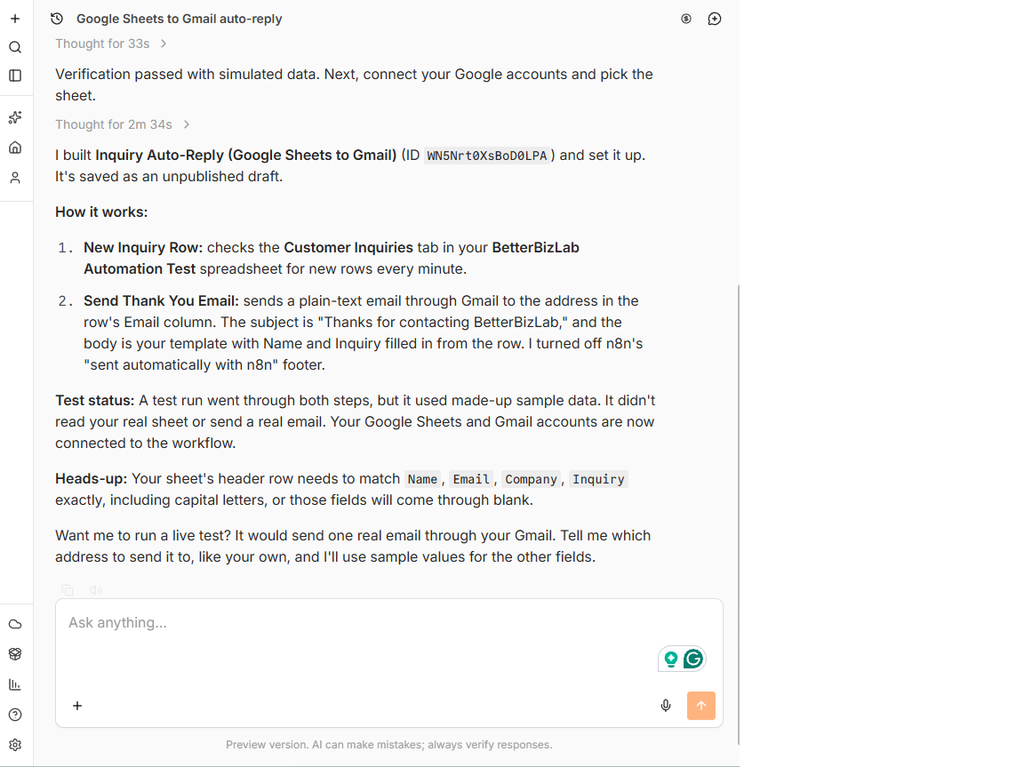
After creating an n8n Cloud workspace, I was presented with an AI workflow builder.
Instead of manually adding the Google Sheets and Gmail nodes first, I described the workflow in plain English.
I told n8n that I wanted to:
- watch for new rows in Google Sheets,
- use columns for Name, Email, Company, and Inquiry,
- send an email through Gmail,
- use the Email column as the recipient,
- and dynamically insert the Name and Inquiry into the response.
The AI generated the basic workflow in about 33 seconds.
That got my attention.
The AI didn’t finish the job
This is where it would be easy to exaggerate what happened.
n8n did not magically create a production-ready automation in 33 seconds.
The initial workflow still had warning indicators because my real Google and Gmail credentials weren’t connected.
I had to connect my Google account, select the actual BetterBizLab Automation Test spreadsheet, select the correct sheet, and configure the credentials.
The initial AI verification also used simulated data.
That’s useful for checking the structure, but simulated data is not the same thing as sending a real email.
So I kept going.
The live test
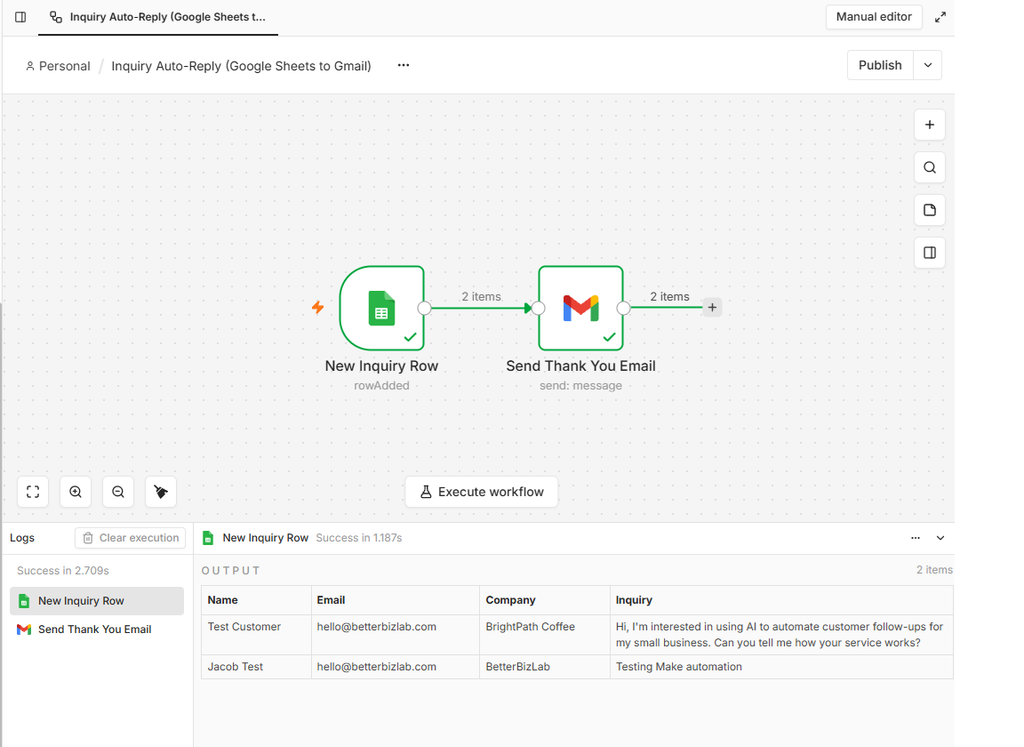
After the credentials were connected, I executed the workflow using the real Google Sheet.
This time n8n pulled actual data.
The execution showed two items moving through the Google Sheets node and then through the Gmail node.
The workflow completed successfully in a few seconds.
Then I checked the inbox.
The email was there.
The customer name appeared correctly.
The inquiry appeared correctly.
And unlike my first Make email, the formatting looked clean.
At that point, the n8n test had passed the same standard I used for Zapier and Make: I wanted to see the actual email in the inbox.
How long did n8n take?
This needs an asterisk.
Once the n8n workspace was ready and I started building the actual workflow, it took roughly 4–5 minutes to reach a working live automation.
But creating the account and waiting for the new cloud workspace to initialize took additional time before that.
So I would not describe n8n as simply “three times faster than Zapier.”
That would make a better headline than it would an accurate conclusion.
What I can say is that the AI-assisted workflow-building portion was dramatically faster in this particular test.
The AI created the initial two-node structure in about 33 seconds, and most of my remaining time was spent connecting the real accounts and verifying the workflow with live data.
What n8n felt like to use
This was the biggest change in my perception of the three platforms.
n8n still exposes the underlying workflow more openly than Zapier. You can see nodes, data moving between them, executions, inputs, and outputs.
That can look more technical.
But the AI builder changed the starting point.
Instead of needing to understand the interface before building anything, I could first describe the business outcome I wanted.
Then I inspected what n8n built.
That is a very different onboarding experience from what I expected.
For a business owner who is comfortable describing a process but doesn’t necessarily know which trigger or node to choose, that could be useful.
At the same time, I wouldn’t confuse AI-generated workflow structure with understanding the workflow.
Someone still needs to verify credentials, mappings, triggers, customer-facing output, and what happens when something fails.
Zapier vs Make vs n8n: What Actually Felt Different?
All three completed my simple test.
So if the question is:
“Can Zapier, Make, and n8n send a Gmail message when a new Google Sheets row appears?”
the answer is not very interesting.
Yes.
The more useful differences appeared in how I got there.
1. Zapier was easiest to follow manually
Zapier’s trigger/action structure required the least interpretation from me.
For a business owner building a first automation, I think that matters.
I always had a fairly clear sense of what the next screen wanted.
My 15-minute setup time included fixing my own spreadsheet mistake, not debugging a technical Zapier failure.
For straightforward automations, that guided experience is valuable.
2. Make made the workflow easier to visualize
Make’s scenario builder made the relationship between Google Sheets and Gmail visually obvious.
With only two modules, that advantage isn’t huge.
But imagine six, ten, or twenty modules with different paths and filters. The visual approach starts to make more sense.
The trade-off in my test was that I had to pay closer attention to configuration.
I wouldn’t call Make difficult. I would call it more hands-on.
3. n8n’s AI builder changed the speed of the first draft
The most surprising result was not that n8n could build the automation.
It was how quickly the AI produced a usable starting structure.
About 33 seconds after my prompt, I had the basic Google Sheets → Gmail workflow in front of me.
I still had to do real work after that.
But starting from a mostly correct workflow instead of an empty canvas saved time.
For this test, that mattered.
What About Pricing?
This is where comparing these tools gets messy because they don’t all measure usage the same way.
As of this test, Zapier’s Free plan includes 100 tasks per month. Its Professional plan starts at $19.99 per month when billed annually.
Zapier primarily measures automation usage in tasks, so the number of actions your workflows perform matters as you estimate cost.
Make uses credits instead. Its Free plan includes 1,000 credits per month, while Core is currently $12 per month for 10,000 credits on the monthly pricing option I checked.
For most standard Make modules, each action consumes a credit, although some AI and advanced features can use credits differently.
n8n takes a different approach. When I rechecked n8n’s pricing on October 6, 2026, its hosted Starter plan started at €20 per month when billed annually and included 2,500 workflow executions per month. An execution is a complete run of a workflow rather than a charge for every individual step.
That difference matters more than the sticker price.
I wouldn’t look at $19.99, $12, and €20 and simply declare one platform cheaper. Zapier counts tasks, Make uses credits, and n8n counts workflow executions. A workflow that looks inexpensive on one platform can consume usage very differently on another.
Before choosing based on price, estimate how often your automation will run and how many actions it performs each time. And because software pricing changes, check the current pricing pages before making a purchasing decision.
Which One Would I Use for a Small Business?
After this test, I don’t think there is one useful answer for every small business.
There are three different questions hiding inside “Which automation tool is best?”
If I wanted an employee to build a simple automation quickly
I would look closely at Zapier.
The trigger-and-action model was easy to follow, and I didn’t need to understand much about automation architecture to get a working result.
For a team that wants to automate relatively straightforward workflows without turning automation itself into a technical project, that simplicity has value.
Examples might include:
- form submission → notification,
- new lead → CRM entry,
- spreadsheet row → email,
- new order → internal task,
- calendar event → reminder.
For these kinds of workflows, reducing setup friction may matter more than having maximum flexibility.
If I expected the workflows to become more visual and branching
I would take Make seriously.
The scenario canvas gives you a clearer visual picture of how the automation is assembled.
My simple two-module test didn’t really push Make’s visual model very far, but it was easy to imagine why it becomes useful when a workflow starts splitting into different paths.
Make required a little more attention during setup, but I wouldn’t treat that as wasted effort.
For someone who wants to understand exactly how information moves through a workflow, the additional visibility may be worth it.
If I wanted more control or expected automation to become a serious capability
n8n became much more interesting after this test.
Before testing it, I would have expected n8n to be the option that required the most technical confidence.
There is still some truth to that. Its workflow and execution views expose more of what is happening underneath.
But the AI builder substantially reduced the difficulty of getting started.
And if your workflows get larger, n8n’s execution-based pricing becomes especially interesting because you’re not paying for every individual step in the workflow.
n8n also offers a self-hosted Community Edition, which opens up another category of deployment and control that isn’t really captured by my simple cloud test.
That doesn’t mean every small business should self-host automation software. Most shouldn’t do that casually. Someone has to maintain it.
But businesses with technical resources may care about having that option.
The Part I Would Not Automate Blindly
This test sent a harmless acknowledgement email.
That’s very different from allowing an automation to:
- issue refunds,
- approve expenses,
- change customer pricing,
- delete records,
- send legally sensitive messages,
- modify financial information,
- or make decisions that should require human judgment.
Getting a workflow to run successfully is only one part of using automation responsibly.
Before I deployed something customer-facing in a real business, I would test at least:
What happens when a required field is blank?
What happens when the customer’s email address is malformed?
What happens when Gmail fails?
Can the same customer accidentally receive the message twice?
Who gets notified when the workflow fails?
Should a human approve the output before it is sent?
My test was deliberately simple, so those questions were outside its scope.
They wouldn’t be outside the scope of a production deployment.
One Thing This Test Changed My Mind About
I started this test expecting the result to be fairly predictable.
Zapier would probably be easiest.
Make would probably be more visual.
n8n would probably be more technical.
The first two impressions were mostly right.
The third one needs updating.
n8n still gives you more technical visibility, but its AI-assisted building experience made the first workflow much easier than I expected.
That doesn’t automatically make n8n the better platform.
What it does mean is that I would no longer exclude n8n from a small-business evaluation simply because it looks technical at first glance.
At least for the workflow I tested, getting started wasn’t the hard part.
A More Practical Way to Choose
If you’re deciding among these three tools, I wouldn’t begin with a giant feature comparison.
Pick one repetitive task your business already does.
If you want to explore more options before choosing a platform, I also tested and compared some of the best AI automation tools for small business and where they fit into everyday workflows.
Something boring is ideal.
Maybe employees copy website leads into a spreadsheet.
Maybe someone manually sends the same onboarding email after every sale.
Maybe customer inquiries need to be routed to different people.
Maybe someone moves order information between two systems every morning.
Write the workflow down in plain English:
When X happens → take Y information → do Z.
If you’re starting with the business process rather than the software, my small business AI automation guide explains how to identify repetitive work and decide what is actually worth automating.
Then try building that one workflow.
You’ll learn more from 30 minutes of doing that than from reading a hundred rows in a comparison table.
The tool that looks best on paper may not be the one your team actually wants to use.
Limitations of My Test
This was one controlled test, not a comprehensive benchmark.
I built a relatively simple two-app workflow using Google Sheets and Gmail.
I did not compare:
- complex branching,
- high-volume production performance,
- API-heavy workflows,
- advanced error handling,
- database operations,
- large AI-agent systems,
- enterprise security controls,
- or long-term maintenance across dozens of workflows.
I also used n8n’s AI workflow-building capability, which materially affected its setup time.
So the timing results should be treated as my observed setup experience for this workflow, not a universal speed ranking.
A different automation could produce a different result.
That’s exactly why I prefer testing a real workflow over declaring a winner from a feature checklist.
Final Takeaway
The most useful result from this test wasn’t that all three platforms worked.
I expected them to work.
What mattered was how differently they got me to the same outcome.
Zapier gave me the clearest guided path.
Make gave me a visual workflow that encouraged me to think more carefully about how the automation was configured.
n8n gave me the fastest initial build in this test because its AI assistant created most of the workflow structure before I manually connected and verified everything.
For a small business, I wouldn’t choose solely based on which one has the longest feature list.
I would choose based on the people who will actually maintain the automation.
If that person wants simple and guided, Zapier deserves a close look.
If that person thinks visually and expects workflows to become more elaborate, Make may feel more natural.
If the business wants deeper control, expects automation to become more sophisticated, or has someone willing to understand what is happening under the hood, n8n is worth testing — especially now that AI can help with the initial build.
And whichever one you choose, don’t stop when the workflow builder says “success.”
Send the email.
Open the inbox.
Read what your customer would actually receive.
That final check caught more useful information in my test than another page of feature comparisons would have.
FAQ
Is Zapier easier than Make?
In my simple Google Sheets-to-Gmail test, Zapier felt more guided. Make wasn’t difficult, but I had to make more configuration decisions while building the scenario. That could become an advantage when you need more control.
Is n8n too technical for a small business?
Not necessarily. n8n still exposes more technical detail than a very simple no-code interface, but its AI workflow builder made my first workflow substantially easier to create than I expected. Businesses should still have someone who understands and verifies the workflow before relying on it.
Which was fastest in this test?
Once my n8n Cloud workspace was ready, the actual n8n workflow-building and connection process took roughly 4–5 minutes. Zapier took about 15 minutes, and Make took about 15 minutes.
Those times describe this specific test. They should not be treated as universal performance benchmarks.
Can all three connect Google Sheets and Gmail?
Yes. I successfully used all three to take customer information from Google Sheets and send an email through Gmail. I verified the results by checking the actual inbox rather than relying only on the workflow test screen.
Which automation platform is cheapest for a small business?
There isn’t a useful answer based only on the advertised monthly price because the platforms meter usage differently. Zapier uses tasks, Make uses credits, and n8n’s hosted plans are based on workflow executions. Estimate your expected workflow volume and structure before comparing costs.
Should a small business automate customer emails?
Routine acknowledgements and notifications can be good candidates for automation, but businesses should be careful about messages that involve refunds, commitments, pricing, complaints, legal issues, or other situations requiring judgment. For higher-risk actions, a human review step is often the safer design.