
If you run a business with 5 to 20 people, you don’t need a company-wide AI strategy. You need to know which everyday jobs ChatGPT handles well, how to set it up so employees use it safely, and where a person still has to check the work.
This guide combines three kinds of information, labeled as we go:
- BetterBizLab firsthand testing: three tests we ran for this guide (a customer reply, a spreadsheet review, and meeting notes in a ChatGPT Project), including where ChatGPT fell short.
- Official OpenAI information: plans, prices, and features from OpenAI’s pricing page and help center, checked September 24, 2026.
- BetterBizLab analysis: our recommendations for a small team.
The goal isn’t maximum AI adoption. It’s a few controlled, useful applications that save your team time without creating new mistakes.
Quick Answer: How a Small Business Should Use ChatGPT
Start with one bounded weekly task, such as replying to complaints or turning meeting notes into action items. Give ChatGPT the business context it can’t know: your policies, prices, tone, and what it must never promise. Have a person review the output, and use it only after that review. Consider automation only once the workflow has proven useful and repeatable.
In our tests, context made the biggest difference — and every output still needed a human check.
Which ChatGPT Plan Does a Small Business Need?
Plan details change often; this is a snapshot from OpenAI’s ChatGPT pricing page and help center as of September 24, 2026.
Free, Go, and Plus: Individual Plans
OpenAI lists four individual plans: Free ($0), Go ($8/month, which OpenAI notes “may include ads”), Plus ($20/month), and Pro (from $100/month). OpenAI’s pricing FAQ says Free, Go, and Plus “are designed to be used by individuals.”
For an owner testing ChatGPT alone, Free or Plus is a sensible start. Free limits uploads and advanced features; Plus adds more usage, stronger reasoning models, scheduled tasks, and custom GPTs.
ChatGPT Business: When Employees Are Involved
For staff using ChatGPT for company work, OpenAI offers the Business plan (formerly Team). According to OpenAI’s help center, it costs $20 per user per month billed annually or $25 billed monthly for standard seats, requires at least 2 seats, and includes a shared workspace, centralized billing, and admin controls for users and access. OpenAI states it won’t train on a Business workspace’s data.
Don’t share one individual login across the team. OpenAI’s Terms of Use say you may not share your account credentials or make your account available to anyone else.
A ChatGPT Subscription Is Not the OpenAI API
This is an easy point to get wrong. A ChatGPT subscription — Free, Plus, or Business — covers using ChatGPT itself. It does not include OpenAI API usage. OpenAI’s help center says its API service “is billed and managed separately to ChatGPT,” and API usage is charged pay-as-you-go by tokens.
That matters when you connect AI to other software, which we cover in the automation section below.
| What you want to do | Where it happens | Setup and billing |
|---|---|---|
| Draft, rewrite, or summarize text | In ChatGPT | Any plan; limits vary |
| Upload a spreadsheet or document and analyze it | In ChatGPT | Available on all plans; Free has tighter upload limits |
| Reuse instructions and files for one recurring job | ChatGPT Projects | See the Projects note below |
| Give staff their own accounts with admin control | ChatGPT Business | From 2 seats, billed per user |
| Run AI on its own when a form, email, or order arrives | OpenAI API, usually through an automation tool | Separate API account, billed by usage |
A note on Projects: OpenAI’s Projects help article lists Projects on all signed-in plans, with file limits of 5 files per project on Free, 25 on Go and Plus, and 40 on Business. The pricing page, however, markets Projects as a Plus feature. Check what your own account shows before planning around it.
Set Up ChatGPT Before Your Team Uses It
A little setup heads off predictable problems: customer data in personal accounts, everyone writing prompts from scratch, and no shared rules for using the output.
Check Data Controls and Use Temporary Chat When Appropriate
On individual plans, conversations can be used to train OpenAI’s models unless you turn that off. OpenAI’s Data Controls FAQ explains the setting: Settings → Data controls → “Improve the model for everyone.” Turning it off stops new conversations from being used for training; it does not delete your chat history.
For one-off conversations, Temporary Chat keeps the chat out of your history and out of training, though OpenAI may keep it for up to 30 days for safety. It is not a place for information you shouldn’t share at all.
Use a Project for Each Recurring Job
A ChatGPT Project groups chats, files, and instructions for one type of work, so you set your refund policy once instead of in every chat. Our meeting-notes test below shows how well that held up.
Write a One-Page Business Context File
The most useful setup step is a one-page document that tells ChatGPT what it can’t know about your business:
- What you sell and who your customers are
- Current pricing, with the date it was last checked
- Tone and voice: for example, “professional, warm, and concise”
- Customer policies: shipping windows, refund and return rules, warranties
- Approval limits: who can approve refunds, discounts, credits, or exceptions
- What must never be promised without approval
- Internal terminology: product names, service tiers, abbreviations
- Escalation rules: when a draft must go to the owner or a manager
Treat it like any policy document: give it an owner, date it, and update it when prices or policies change. An outdated context file produces confident, outdated answers.
Decide What Never Goes Into ChatGPT
Before employees start, decide what can be pasted in, what must be anonymized first, and what never goes in. Our guide to using AI safely in a small business covers how to build that rule for your team.
The BetterBizLab Method: Task → Context → ChatGPT Output → Human Review → Business Action
Every workflow in this guide follows the same five steps:
- Task: one bounded job with a clear finish line, such as “draft a reply to this complaint.”
- Context: the business information ChatGPT needs — usually from your context file.
- ChatGPT output: a draft, analysis, or list, treated as a first version.
- Human review: a person checks facts, commitments, numbers, and tone.
- Business action: only the reviewed version is sent, filed, or used in a decision.
If you’re still deciding which tasks to hand to AI, start with our guide on how small businesses can use AI to save time. This guide covers what happens once you’ve picked one.
BetterBizLab Test: The Same Customer Email, With and Without Business Context
We gave ChatGPT the same customer email twice. The customer complained about a late order and asked for a full refund.
Run A — email only. ChatGPT received the customer email and an instruction to reply. The basic prompt wasn’t bad. It was generic. ChatGPT did not approve or promise the refund, and it wrote a reasonable customer-service response. But it had no way to know the company’s shipping window, which orders qualify for refunds, who can approve exceptions, or how the company prefers to sound.
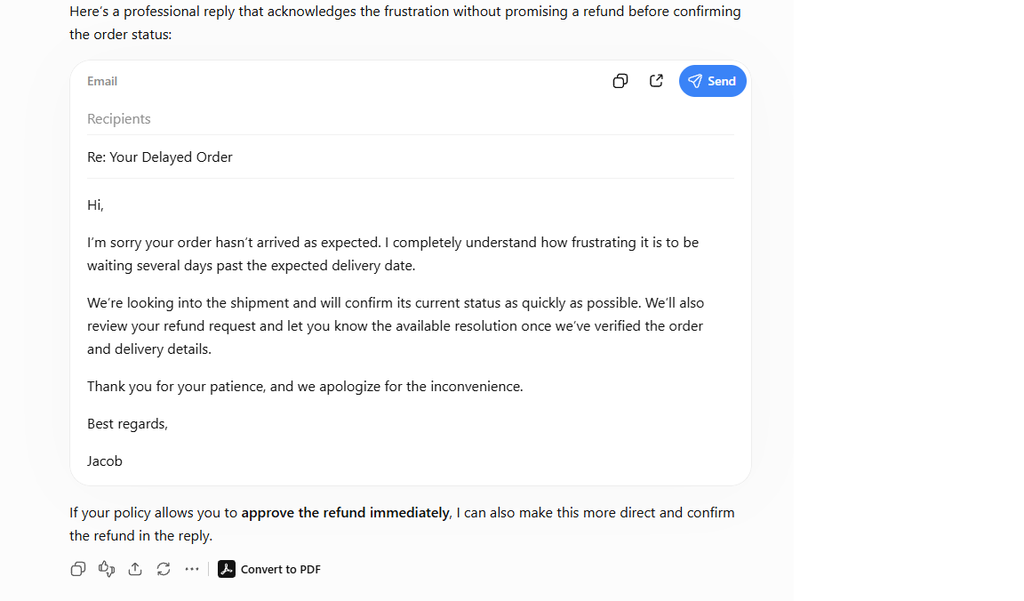
Run B — email plus business context. We sent the same email with this context:
- Orders normally ship within 2–3 business days.
- Refunds are available only for canceled orders that haven’t shipped, or for damaged or incorrect products after review.
- A shipping delay alone does not automatically qualify for a refund.
- Customer service may apologize and provide an order-status update.
- Customer service may not promise refunds, discounts, credits, or specific delivery dates without approval.
- Tone: professional, warm, and concise. Signature: BetterBizLab Customer Support.
The prompt added: “Do not promise anything the policy does not allow. If the information provided is not enough to make a decision, clearly flag what needs human review instead of guessing.”
This time the reply followed the policy. It reflected the stated shipping window, did not promise an unauthorized refund, treated refund eligibility as something that needed review, used the requested tone and signature, and flagged the missing order and shipping details a person would need to check.
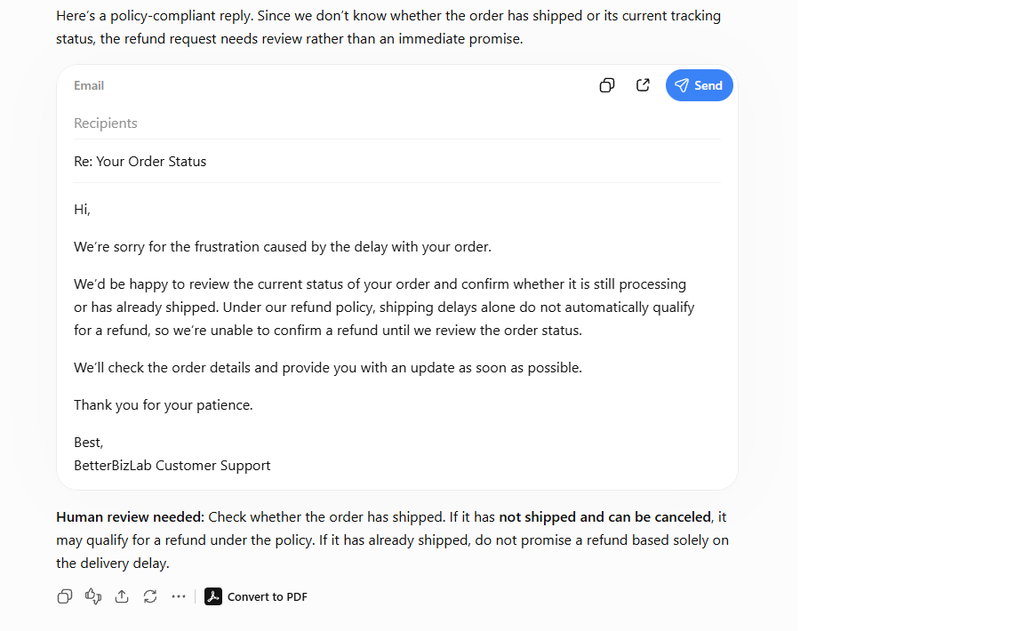
What we took from it: business context made the response substantially more useful. It did not remove the need for review — a person still had to look up the order, confirm its status, and decide on the refund. What changed was the starting point: a draft that followed company policy instead of one that had to be rewritten around it.
Practical ChatGPT Workflows for Small Business
These seven workflows fit a 5–20 person business well. Three include our test results; the other four are BetterBizLab analysis.
1. Customer Replies That Require Judgment
Good fit: complaints, late orders, refund requests, quote questions, and other messages where the wording matters and a policy applies.
Context needed: policy, approval limits, and tone from your context file, plus the customer’s message and any order details.
Example prompt: “Draft a reply to this customer using our policy below. Don’t promise refunds, credits, or delivery dates. List anything a person needs to verify before sending.”
What the reviewer checks: every commitment, date, and amount, and the flagged questions against your order system.
When not to use it: legal threats, injury or safety complaints, and chargebacks go straight to a person.
For ready-made wording, see our ChatGPT prompts for small business owners. When replies become a repeated process, our guides to automating customer follow-ups and automating customer service cover the next step.
2. Meeting Notes → Action Items and Follow-Up
Good fit: turning rough notes from a team meeting into a list of owners, deadlines, decisions, and a short follow-up email.
Context needed: the notes, plus standing rules for missing information — a good use for a Project.
BetterBizLab test: Project instructions across two chats. We created a ChatGPT Project with this instruction:
“You help turn internal small-business meeting notes into clear action items and follow-up emails. If an owner or deadline is missing, write TBD. Never guess or invent an owner, deadline, decision, number, or commitment. Clearly separate confirmed decisions from open questions. Keep the output concise and practical.”
First meeting. ChatGPT correctly assigned Sarah to the onboarding checklist and Mike to the CRM migration, marked the missing owners and deadlines on two tasks as TBD, and kept a proposed AI-generated weekly sales summary as an open question rather than presenting it as a decision.
It also made two unsupported inferences despite the instruction. The notes said Sarah would finish her task “by Friday,” and ChatGPT turned that into a specific date, “September 25,” even though the notes didn’t contain enough calendar context to establish it. The notes also said every quote should get a follow-up within three business days, without naming an owner — and ChatGPT labeled the owner “Team / Quote Owner” instead of TBD.
Second meeting. We opened a new chat inside the same Project and did not repeat the TBD or “never guess” instructions. ChatGPT listed Lisa as the owner of three social media concepts due “next Wednesday,” marked the newsletter test owner and the customer-review task owner as TBD, stated that the notes didn’t establish why website traffic had increased, and left a proposed advertising budget increase undecided. It converted the customer-review deadline from “before the next marketing meeting” to “Before Oct. 9” — which was supported, because the same notes said the next marketing meeting was October 9.
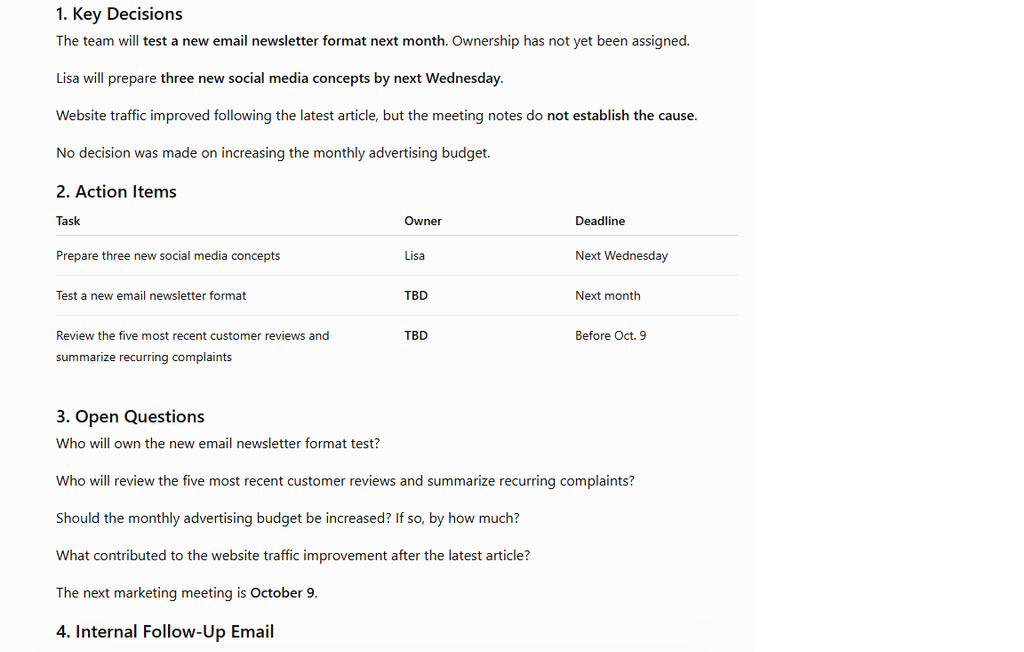
What we took from it: the Project instruction carried into the second chat without being repeated. But the first meeting showed their limit: persistent instructions improved consistency and reduced guessing, but they did not eliminate unsupported inferences or the need for human review. Before sending the follow-up email, the reviewer should check every owner and every date against the notes.
When not to use it: HR or disciplinary discussions and meetings with sensitive details, unless your data rules allow it. For automatic recording and summaries, see our comparison of AI meeting assistants for small business.
3. Spreadsheet and File Analysis
Good fit: a weekly orders or sales export where you want totals, the biggest changes, and anything that looks wrong.
BetterBizLab test: an 8-week orders file with a planted duplicate. We built a synthetic CSV for this test: 17 rows of small-business order data across 8 weeks. We deliberately duplicated one order, ORD-1015, worth $1,050. We asked ChatGPT to calculate revenue for each week, identify the three largest week-over-week changes, flag possible data errors, show its calculations, avoid assuming causes the data didn’t support, and explain how any data problem affected the analysis.
ChatGPT calculated all 8 weekly revenue totals correctly. It identified ORD-1015 as a possible duplicate, but it didn’t silently delete it. Instead, it explained that the data alone couldn’t prove whether the duplication was accidental, and it showed the numbers both ways:
| Measure | As exported | Without the possible duplicate |
|---|---|---|
| Total revenue | $9,980 | $8,930 |
| Aug. 24 week revenue | $2,600 | $1,550 |
| Aug. 17 → Aug. 24 change | +$1,240 (+91.2%) | +$190 (+14.0%) |
With the duplicate removed, the three largest week-over-week changes were Aug. 3 → Aug. 10 (−$750), Jul. 27 → Aug. 3 (+$720), and Aug. 10 → Aug. 17 (+$410). ChatGPT did not invent explanations for any of those changes.
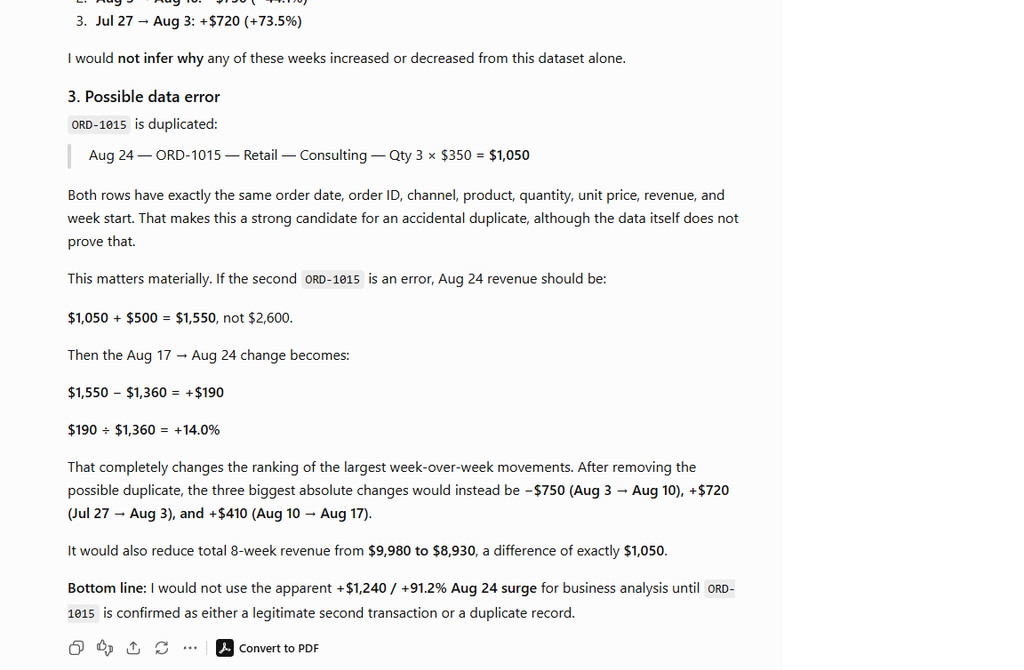
What we took from it: the useful part wasn’t that ChatGPT can add up a spreadsheet. It caught a possible data-quality problem that changed the business conclusion — a week that looked like a 91% jump was closer to 14% — and left the decision about whether the record was really a duplicate to a person. This was one test on a small synthetic file. It doesn’t show that ChatGPT will always catch duplicates or data errors, so keep checking totals against your own system.
What the reviewer checks: recalculate two or three totals yourself, confirm any flagged records in the source system, and don’t act on a trend until the data question is settled.
When not to use it: payroll, tax filings, or financial statements. ChatGPT can help you read a report; it shouldn’t be the system of record. For recurring reports, see our guide to small business tasks you can automate with AI.
4. First-Draft SOPs
Good fit: turning “how we do it” — a voice memo, a rough checklist, an employee’s description — into a structured draft procedure. ChatGPT can organize and format, but the real steps must come from the person who does the job.
Review and limits: that person should walk through the draft and correct anything ChatGPT filled in or smoothed over. Don’t use it for safety-critical or regulated procedures without qualified review. Our guide to creating SOPs with ChatGPT covers the full process.
5. Marketing Content From One Source
Good fit: taking one real source — a customer question, a new service, a finished project — and turning it into an article outline, a few social posts, and an email paragraph. Supply the source, your audience, your offer, and your voice; starting from something real keeps the output from sounding like everyone else’s.
Review and limits: check every claim, price, and statistic, and rewrite the generic parts. Don’t publish unedited AI articles in bulk, and never have ChatGPT write testimonials or reviews.
6. Product and Service Descriptions and FAQs
Good fit: rewriting product or service pages and answering the questions customers actually ask. Give ChatGPT real specifications, pricing, and policies, plus real customer questions from email, calls, or support tickets — and ask it to answer those, not to invent new ones.
Review and limits: verify specs, compatibility, and any certification or compliance claim. Never let ChatGPT add a claim your product documentation doesn’t support, and get qualified review for health, safety, or legal claims.
7. Competitor and Market Research as a Starting Point
Good fit: a first list of competitors, a comparison framework, or a summary of what customers care about in your category.
Review and limits: treat every competitor price, feature, and claim as unverified until you open the source yourself. Research output is where your checking starts, not the final basis for pricing, legal, or investment decisions.
Where ChatGPT Stops: When to Move the Workflow to Automation
ChatGPT is where a person asks for help. Automation is work that runs without someone starting it. Signs a workflow is ready to move:
- The same prompt is being run many times a week.
- The work starts from a recurring event — a new form submission, order, or email.
- Data has to move automatically between systems.
- The output needs to be written into a CRM, help desk, or spreadsheet without copying and pasting.
- The workflow needs to run the same way every time, at a volume a person can’t keep up with.
At that point you’re usually connecting an automation platform to the OpenAI API, which is set up and billed separately from ChatGPT. In a separate BetterBizLab test in Zapier, adding ChatGPT to the workflow required separate OpenAI API credentials.
Keep the human review step when you automate anything customer-facing. Our guides on how to automate a small business with AI and the best AI automation tools for small business cover the next step. If you’re considering tools that take actions on their own, read AI agents for small business first.
What Not to Use ChatGPT For
These limits mark where a person, a professional, or ordinary software should stay in charge.
| Don’t use ChatGPT to… | Why | Do this instead |
|---|---|---|
| Make high-stakes legal, tax, financial, HR, or medical decisions | Errors are costly and hard to reverse | Use ChatGPT to prepare questions; get qualified advice |
| Write product, safety, or certification claims | It can add claims your records don’t back up | Work only from verified specs and documents |
| Process sensitive customer or employee information | Not every account or plan fits your data obligations | Follow your AI data rules; anonymize or leave it out |
| Auto-send promises to customers | A draft can promise what your policy doesn’t allow | Keep approval before any refund, discount, or date is sent |
| Treat research as verified fact | Summaries can be outdated or wrong | Open and check the original source |
| Replace fixed rules or normal software | Calculations and rules should give the same answer every time | Use your accounting system, spreadsheet formulas, or CRM rules |
A Practical 30-Day Rollout for a 5–20 Person Team
- Week 1 — context file: write the one-page context file, set data rules, and choose the right plan for the people who’ll use ChatGPT.
- Week 2 — one workflow: pick one bounded task, such as complaint replies or meeting follow-ups, and set up a Project for it.
- Week 3 — review and track: use it for real work. For each output, note how much you had to edit, what errors you caught, and roughly how long it took compared with doing it yourself.
- Week 4 — decide: keep it, adjust the context and instructions, or drop it. Only then add a second workflow.
If edits take as long as writing from scratch, the workflow isn’t ready — often because the context is missing something.
ChatGPT or Claude?
Both can handle the workflows in this guide. The choice usually depends on the tools your team already uses, how much you work with long documents, and which plan fits your team. We compare them in detail in ChatGPT vs Claude for small business. For a wider view of the tools worth paying for, see our guide to the best AI tools for small business in 2026.
Frequently Asked Questions
Can a small business use ChatGPT for free?
Yes. The Free plan costs $0, with limits on uploads and advanced features. It’s fine for an owner testing ChatGPT; once employees use it for company work, a Business workspace gives each person an account under admin control.
Does ChatGPT Plus or Business include API usage?
No. OpenAI bills and manages the API separately from ChatGPT, with usage-based pricing.
Is my business data used to train OpenAI’s models?
On individual plans, conversations can be used for training unless you turn off “Improve the model for everyone” in Data controls. For ChatGPT Business, OpenAI states that it does not train on workspace data by default.
Can employees share one ChatGPT account?
No. OpenAI’s Terms of Use prohibit sharing account credentials or making an account available to anyone else. For a team, OpenAI’s Business plan provides separate seats from 2 users.
Can ChatGPT analyze uploaded spreadsheets?
Yes, with plan-dependent limits. In our test it calculated weekly totals correctly and flagged a planted duplicate, but verify totals against your own system.
Should a small business use Projects?
For recurring work, yes. Projects keep instructions and files in one place. In our test, instructions carried into a new chat but didn’t prevent every unsupported inference, so keep a review step.
Final Thoughts
ChatGPT works best in a small business when it’s treated as a capable assistant with no knowledge of your company until you provide it. Start with one bounded task. Give it the context in your one-page file. Review everything before it reaches a customer or a decision. Track whether it actually saves time. Automate only after the workflow has proven itself.
That’s slower than handing everyone a login, but far more likely to leave you with workflows your team trusts.